> ## Documentation Index
> Fetch the complete documentation index at: https://docs.govpro.ai/llms.txt
> Use this file to discover all available pages before exploring further.
# Adding Opportunities
> This guide will take you through the process of uploading new opportunities
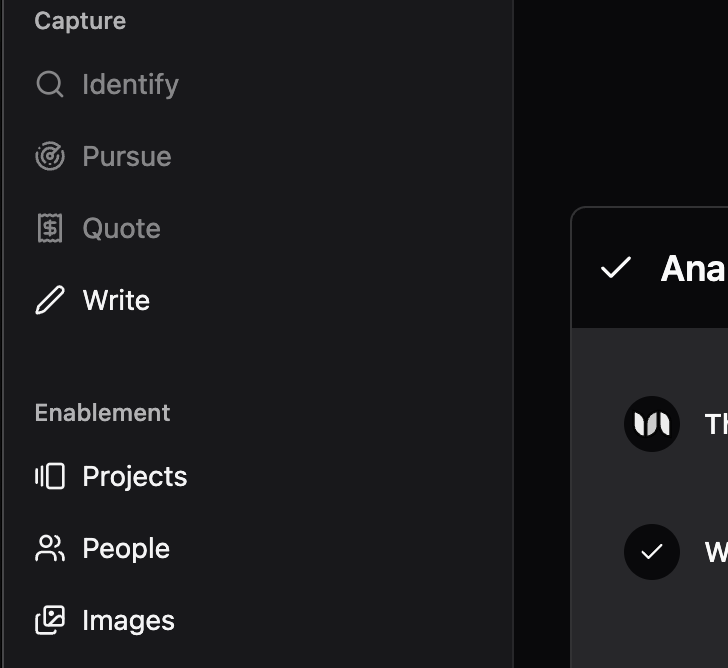
### Navigate to the "Write" tab
This is where you upload solicitations and write your responses.
 ### Click on 'Add Solicitation'
Click on the button in the top right of your screen: **Add Solicitation**.
### Click on 'Add Solicitation'
Click on the button in the top right of your screen: **Add Solicitation**.
 ### Click on 'Upload Files'
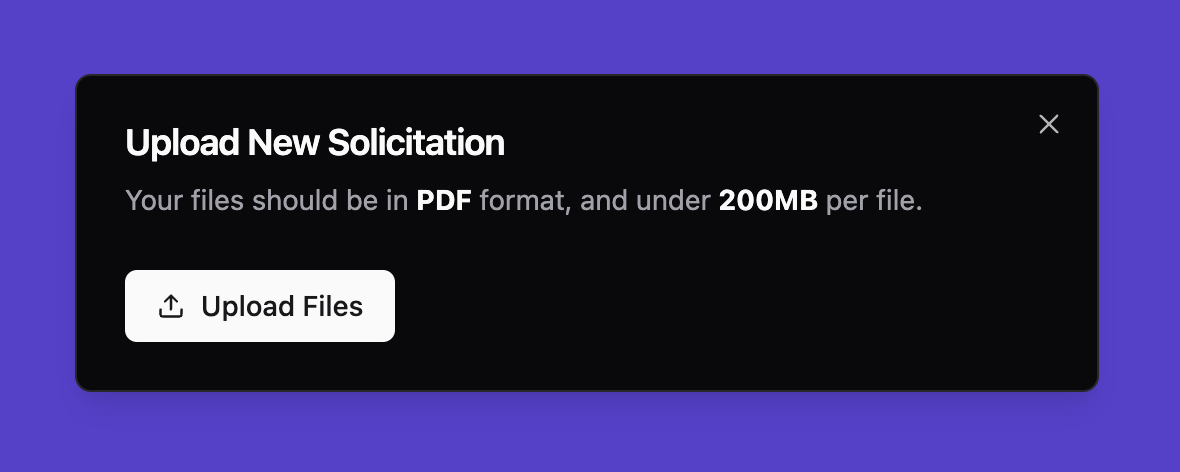
Click on **Upload Files** and make sure to select **files under 200MB** from your device. Make sure PDFs are **not password-protected**. You can upload one or many solicitations at once.
The software does not support legacy Microsoft Office formats (.doc, .ppt, .xls) or any documents created with Microsoft Office versions prior to 2013.
### Click on 'Upload Files'
Click on **Upload Files** and make sure to select **files under 200MB** from your device. Make sure PDFs are **not password-protected**. You can upload one or many solicitations at once.
The software does not support legacy Microsoft Office formats (.doc, .ppt, .xls) or any documents created with Microsoft Office versions prior to 2013.
 ### Click on 'Add Solicitation'
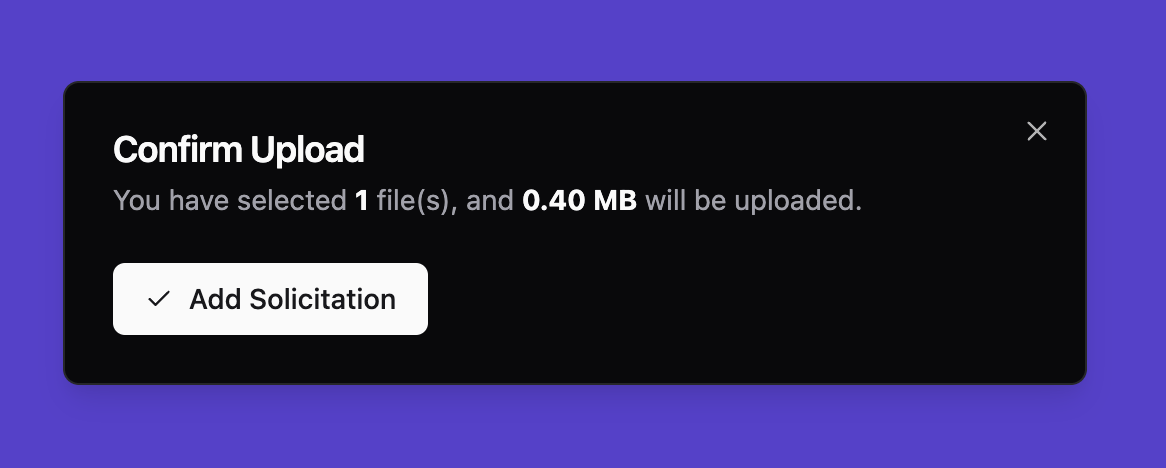
Next you will see information about the file you are uploading, if the file format is valid, you should see a new button: **Add Solicitation**. Click on that button to confirm the upload.
### Click on 'Add Solicitation'
Next you will see information about the file you are uploading, if the file format is valid, you should see a new button: **Add Solicitation**. Click on that button to confirm the upload.
 ### Wait for upload and parsing
You should now see all of your uploaded solicitations. Please **wait for the document to upload and parse**. (You can see the status on the document on the bottom left of its preview image)
### Wait for upload and parsing
You should now see all of your uploaded solicitations. Please **wait for the document to upload and parse**. (You can see the status on the document on the bottom left of its preview image)
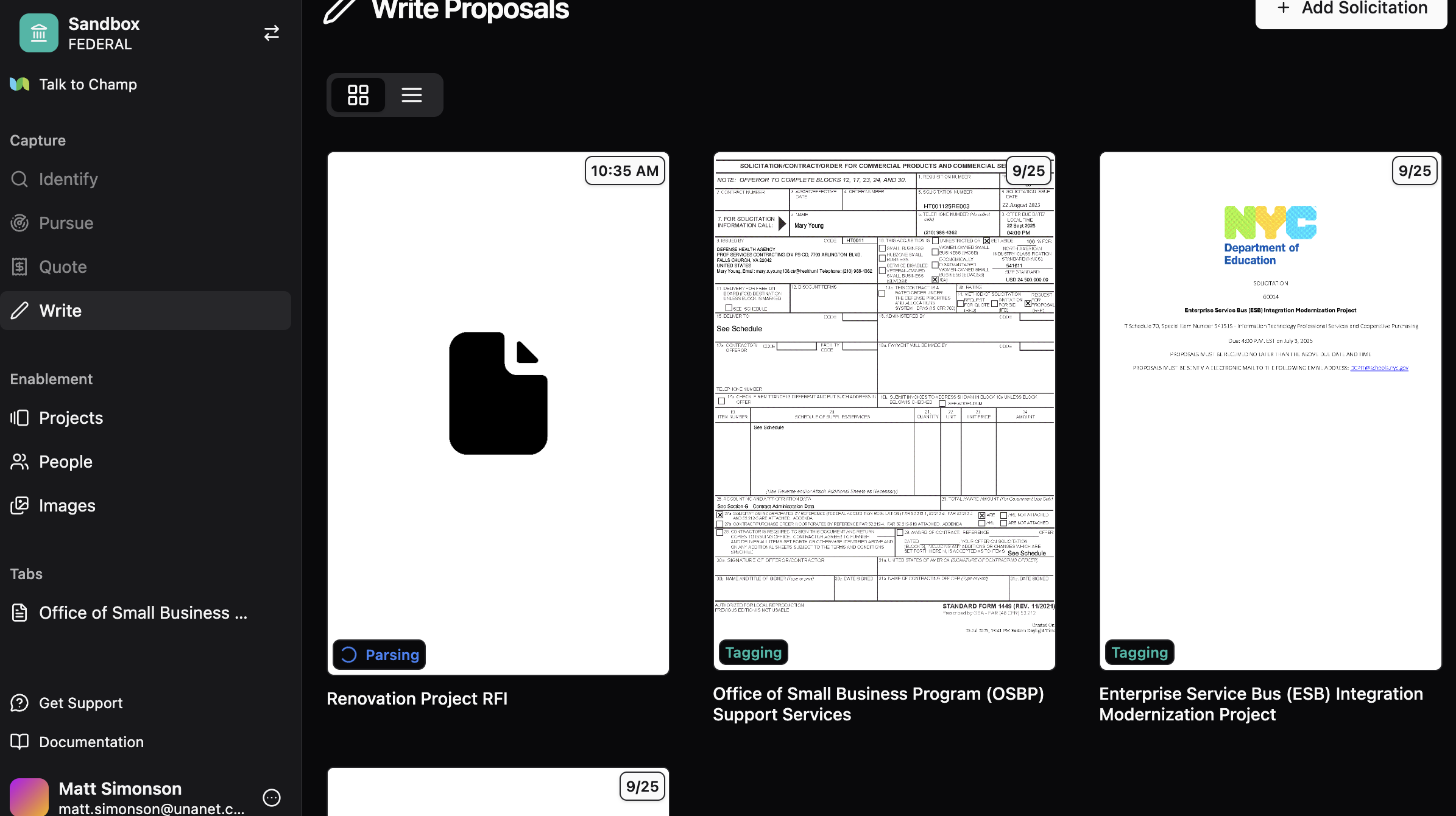 The status of the solicitation should become **Step 1: Tag**. This means you can click on it and start drafting the proposal.